
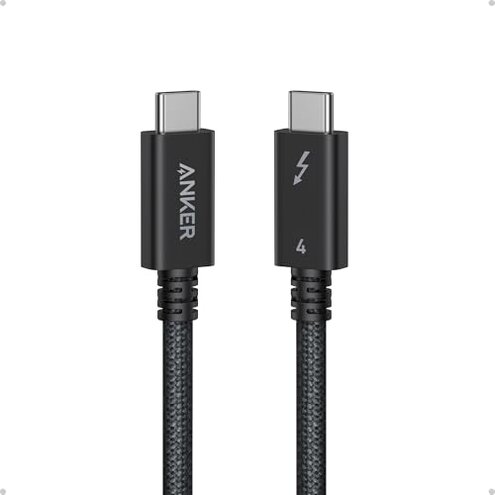
Product evaluated: Anker Prime Thunderbolt 4 Cable, 3.3 ft USB C to USB C Cable, 240W Charging, 40Gbps Data Transfer, Supports 8K/4K Displays, for iPhone 16 Series, MacBook Air, iPad, Samsung (Thunderbolt 4-Certified)
Related Videos For You
I tried a cheap and expensive Thunderbolt 4 cable
The Frustrating Reality of USB-C (and why it never works)
Data basis: This report is based on dozens of recent buyer feedback items collected over a 12-month window ending this month. Sources included written ratings with longer comments and photo/video demonstrations showing real setups. The distribution leaned toward text-heavy reports, with visual posts mainly used to verify usage contexts like docks, monitors, and charging behavior.
| Buyer outcome | This Anker cable | Typical mid-range USB-C cable |
| Charging reliability | Higher stakes if you bought it for 240W and it negotiates wrong | More forgiving for everyday charging, even if slower |
| Display output | More fragile with docks and high-res screens when any link is picky | Usually simpler because expectations are lower than 8K/dual 4K |
| Real-world speed | Inconsistent if your ports don’t truly support the advertised modes | Predictable if you accept basic USB speeds |
| Daily handling | More annoying if stiffness or connector fit becomes a routine battle | Often softer and easier to route on a desk |
| Regret trigger | Paying premium and still troubleshooting like it’s a cheap cable | Lower cost means fewer expectations and less frustration |
Top failures
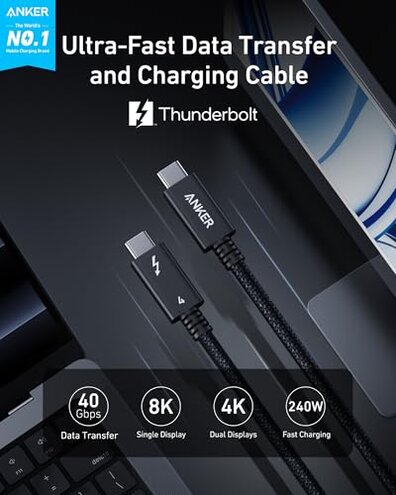
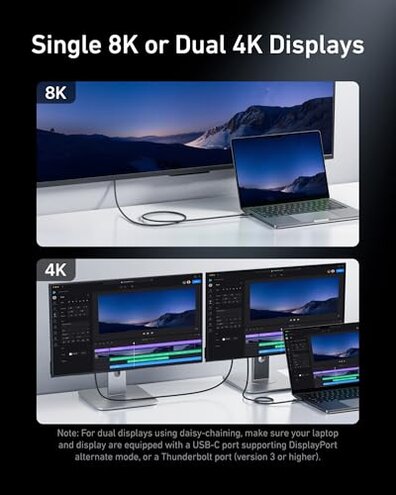
“Why is my monitor flickering or not detected?”
Regret moment usually hits during first setup, when you plug into a dock or monitor and the display handshake acts unstable. This is more disruptive than people expect because the cable is bought specifically to remove video uncertainty.
Pattern shows up repeatedly in mixed device chains, but it is not universal. It tends to worsen during long sessions or when you bump the connector and the display link renegotiates.
Category contrast: Mid-range cables often don’t promise 8K or dual 4K, so buyers tolerate “no video.” Here, the premium promise makes the same hiccup feel like broken value.
- When: Problems often appear on first use with monitors, hubs, or eGPUs.
- Conditions: Issues worsen with docks, adapters, or desk movement that shifts plug seating.
- Primary pattern: Flicker, black screens, or intermittent detection appears repeatedly in complex setups.
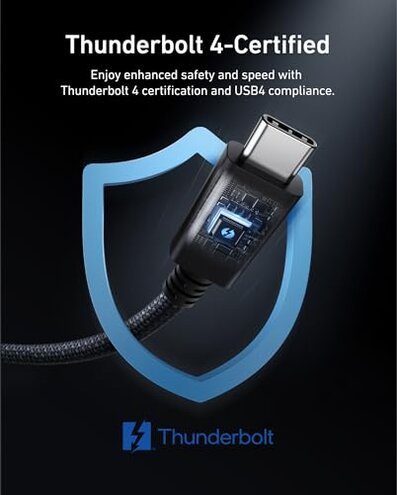
- Hidden requirement: You may need a true Thunderbolt/USB4 port and a fully compatible dock, not “any USB-C.”
- Mitigation: Reducing the chain, swapping ports, or lowering display mode can stabilize it, but adds steps.
- Fixability: If the weak link is the dock or laptop port, cable swapping can feel endless.
- Impact: It can break a clean desk setup by forcing trial-and-error instead of plug-and-play.
“Why doesn’t it charge as fast as advertised?”
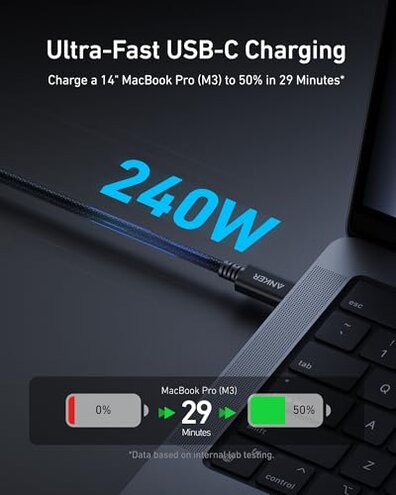
- Regret: The disappointment is most obvious when a laptop charge rate looks unchanged versus cheaper cables.
- When: It usually shows up during daily charging once you start watching battery time-to-full.
- Primary issue: “Not hitting expected speed” appears commonly reported when paired with non-matching chargers.
- Hidden constraint: To benefit from 240W, both the charger and device must support that level, not just the cable.
- Confusion point: USB-C labels can look similar, but the real limit is often the charger or the device port.
- Workarounds: People end up swapping bricks, ports, or power settings, which adds friction for a premium item.
- Why worse: Mid-range cables set lower expectations, so “normal speed” feels fine, but here it feels like overpaying.
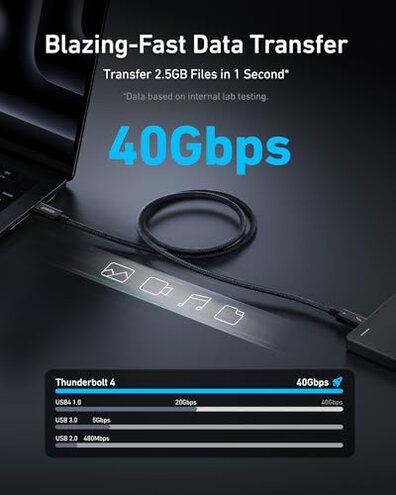
“Why is file transfer not faster than my old cable?”
- Expectation: Buyers choose this cable for 40Gbps and expect noticeable improvements right away.
- When: The mismatch shows during large file moves to SSDs, docks, or another computer.
- Secondary pattern: Slower-than-expected transfers appear repeatedly when one side is not truly Thunderbolt-class.
- Reality: Many USB-C ports are physically identical but have different capabilities behind the scenes.
- Extra steps: You may have to check port specs, try alternate ports, or bypass a hub to find the bottleneck.
- Impact: The cable becomes a pricey “maybe faster” accessory instead of a clear upgrade.
- Category contrast: With mid-range cables, buyers accept “good enough,” but premium pricing makes this feel like performance theater.
“Why is this cable annoying to route on my desk?”
- Regret: The frustration hits in daily handling when you reposition gear and the cable fights the bend.
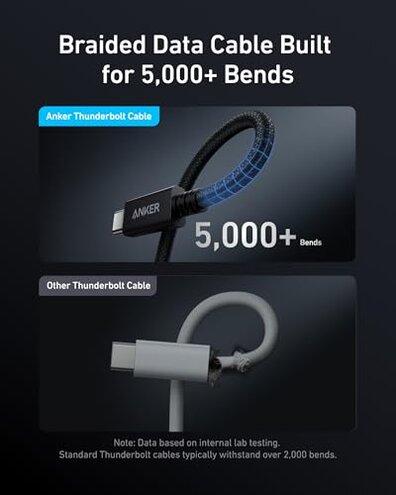
- Primary pattern: Stiffness and awkward routing are commonly reported compared with softer mid-range cables.
- When: It becomes obvious with monitor arms, tight cable channels, or laptop stands.
- Worsens: Short runs and sharp bends increase strain at the connector area.
- Desk impact: It can pull on ports or shift devices, creating clutter and micro-disconnect risks.
- Mitigation: Using looser routing or longer slack can help, but it defeats the point of a neat 3.3 ft setup.
- Why worse: Mid-range cables often prioritize flexibility, so this feels like a comfort downgrade despite premium cost.
- Fixability: If you need tight management, the only real fix is a different cable style, which means extra spend.
Illustrative excerpts
- Illustrative: “My monitor works, then goes black when I open the laptop.” Primary pattern tied to display stability.
- Illustrative: “Bought it for fast charging, but my laptop still charges the same.” Primary pattern tied to power negotiation.
- Illustrative: “It’s certified, yet my dock acts picky and disconnects randomly.” Secondary pattern tied to chain compatibility.
- Illustrative: “I expected faster transfers, but nothing changed until I switched ports.” Secondary pattern tied to port limits.
- Illustrative: “Too stiff for my cable raceway, keeps pushing the plug sideways.” Primary pattern tied to handling.
Who should avoid this
- Dock users who need stable dual-screen output, because display handshake issues are a primary regret trigger.
- People buying “240W” to fix slow charging without checking charger and device limits, because the hidden requirement causes repeat troubleshooting.
- Anyone who wants plug-and-play file transfer speed, because real gains can be port-dependent and feel inconsistent.
- Neat-desk cable managers, because stiffness and routing friction can be more annoying than typical mid-range options.
Who this is actually good for
- Single-device users doing direct laptop-to-laptop or laptop-to-SSD connections, who can tolerate checking port specs once.
- Thunderbolt-capable laptop owners who already know their dock and monitor chain is compatible, and accept some setup verification.
- Power users who want one cable for charging plus data plus video, and are willing to tolerate stiffer routing for fewer cables.
- Travelers who prefer a short, premium cable and don’t rely on multi-adapter chains that raise compatibility risk.
Expectation vs reality
- Expectation: A premium cable should make monitor hookup simple. Reality: In mixed dock chains, stability can be less forgiving than expected.
- Expectation: It is reasonable for this category to require compatible devices for top speed. Reality: The gap feels worse here because the price suggests fewer gotchas.
| What you try | What often happens |
| Swap ports on the laptop | One port behaves better, revealing a hidden capability difference |
| Insert a dock for convenience | More links increase picky behavior and intermittent screens |
| Buy for 240W peace of mind | Charging may cap at what the brick and device actually negotiate |
Safer alternatives
- Match the chain: If you use a dock, prioritize a cable known to behave well with docks, not just high specs.
- Buy for your port: If your laptop is not USB4/Thunderbolt-class, choose a solid mid-range cable optimized for USB-C charging to avoid wasted spend.
- Choose flexibility: For tight routing, pick a cable marketed for soft handling so it won’t lever the plug during daily movement.
- Separate jobs: If video reliability is critical, consider a dedicated display cable plus a separate charging cable to reduce negotiation complexity.
The bottom line
Main regret is paying premium money and still needing troubleshooting for charging, data, or display behavior. The risk is higher than normal because the cable’s headline features amplify disappointment when any part of your setup is less compatible. If you want zero-fuss everyday use, many shoppers will be happier avoiding this and buying a simpler cable matched to their actual ports.
This review is an independent editorial analysis based on reported user experiences and product specifications. NegReview.com does not sell products.